About the Content Version Details dialog
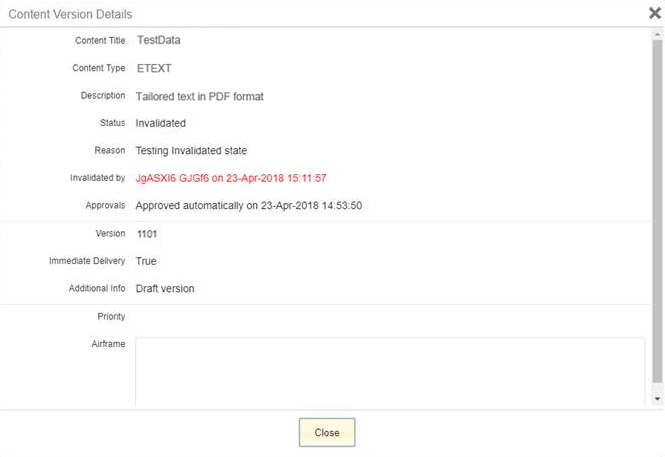
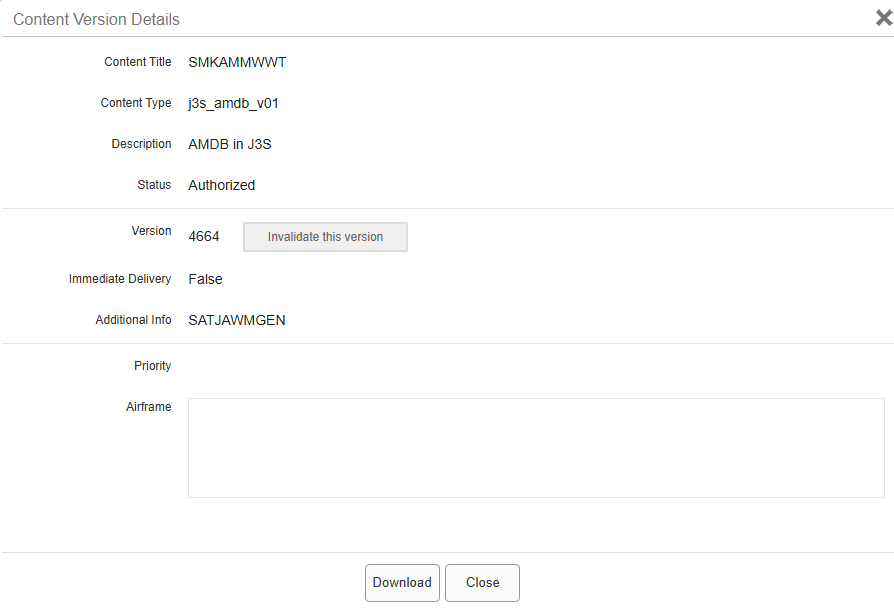
The Content Version Details dialog provides information about a particular version of content that helps you determine how it arrived at its current status.
- Content Title
- The name of the content item. For versioned content, the title along with type of content and version number uniquely identify the content.
- Content Type
- The type of data contained in the content item. For versioned content, the type of content along with title and version number uniquely identify the content.
- Description
- A brief description of the content.
- Status
- The current status of the content version, which can be:
- Created
- Preview
- Pending Approval
- Approved
- Authorized
- Invalidated
- Rejected
- Deauthorized
- Version
- The most recent version of the content item.
- Immediate Delivery
- A value of True indicates that the content item was set for Immediate Delivery when Jeppesen Distribution Manager Pro (JDM Pro) uploaded the file. False indicates that the content item was set for delivery during the next regularly scheduled publishing cycle.
- Additional Info
- Any information that has been added to describe the content item. You might enter this information when you upload your company content.
- Priority
-
If you entered priority information when uploading content, your selection appears here. Options are:
- Normal
- Newsletter
- Bulletin
- Urgent
- High Priority
- Low Priority
- Must Read
- Airframe
- If you entered metadata for use with Aviator, the airframe information for this content version appears in the Airframe dialog.
If you approved the content version manually, JDM Pro includes the names of each approver and the date they approved the version. If JDM Pro approved the content automatically, the Content Version Details shows when it was approved.
The Content Version Details includes an Invalidate This Version button. After you invalidate a content version, the content can no longer be used or reauthorized.
If anyone invalidated a content version, JDM Pro includes the name of the user who invalidated it, the date it was invalidated, and the reason for the invalidation. JDM Pro also shows who approved the content and when, or shows when it was automatically approved.