Signing in to JDM Pro
To sign in to Jeppesen Distribution Manager Pro (JDM Pro), you must have a valid username and password.
About this task
When your JDM Pro account is created, your administrator provides your username and password.
Procedure
- Go to the JDM Pro Log In page, and enter your username and password.
-
Select Log In.
If you're signing in for the first time, the Set Up MFA screen appears. Otherwise, enter your passcode and select Finish.
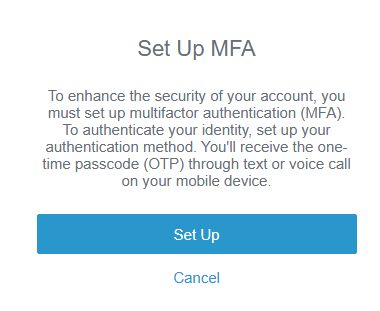
- Select Set Up.
-
To set up a multifactor authentication (MFA) method, make a
selection from the Select Method dialog.
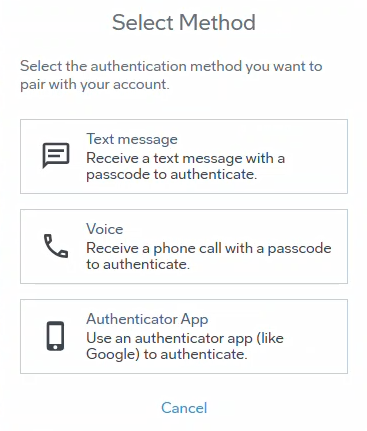
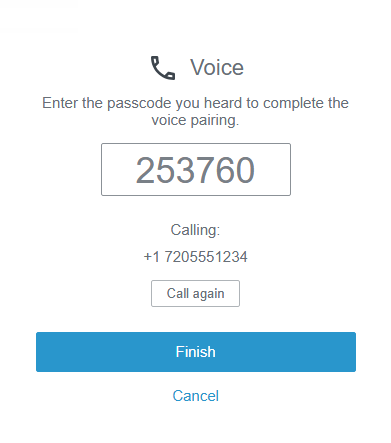
Option Description Voice call To set up a voice call as an MFA method: - On the Select Method screen, select Voice.
- Enter the country code and phone number of the phone
where you want to receive a one-time passcode.+1 7205551234
- Select Next.
JDM Pro sends the
passcode through a voice call to your phone.Note: It can take up to 5 minutes to receive your passcode.
- If you don't receive a voice call on your phone, select Call again.
- On the next screen, enter the passcode and select
Finish.
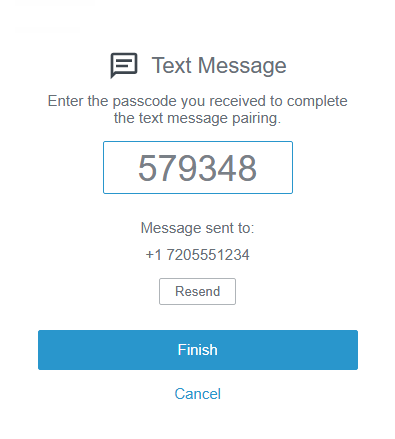
Text message To set up text as an MFA method: - On the Select Method screen, select Text.
- On the Text Message
screen, enter the country code and mobile phone number of the phone where
you want to receive a one-time passcode.+1 7205551234
- Select Next.
JDM Pro sends the
passcode through a text message to your mobile phone.Note: It can take up to 5 minutes to receive your passcode.
- If you don't receive the text message on your phone, select Resend.
- On the next screen, enter the passcode and select
Finish.
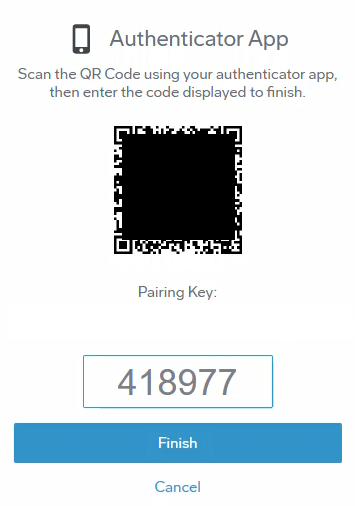
Authenticator app To set up an authenticator app for MFA, you need an authenticator app (such as Google or Microsoft Authenticator) installed on your mobile device. Then: - On the Select
Method screen, select Authenticator App.
The Authenticator App screen appears with a QR code.
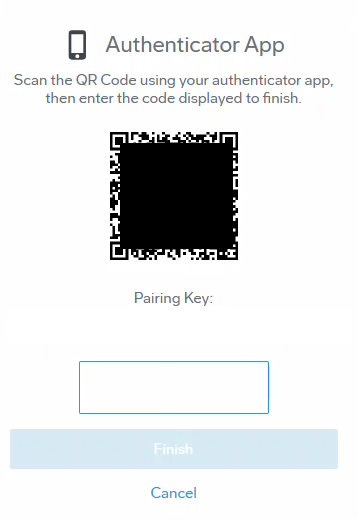
- On your mobile device, open your chosen authenticator app. Then, look
for the Add Account or Scan QR
Code feature in the authenticator app. Scan the QR code
that is displayed on the Authenticator App screen
for JDM Pro.
When your JDM Pro account is added successfully, the account appears in your authenticator app.
- Enter your one-time passcode from your authenticator
app into the pairing screen in JDM Pro, then select Finish.