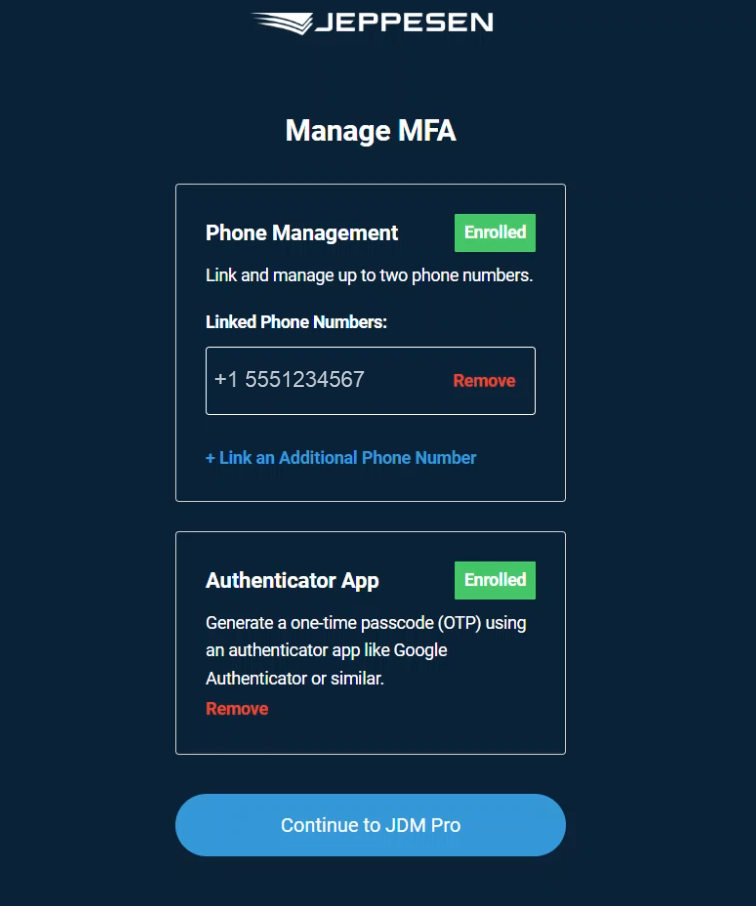
Adding more authentication methods for MFA
Add more authentication methods or phone numbers for multifactor authentication (MFA) in Jeppesen Distribution Manager Pro (JDM Pro).
Before you begin
If you want to use the Authenticator App MFA option, you must have an authenticator app (such as Google or Microsoft Authenticator) installed on your mobile device.
Procedure
-
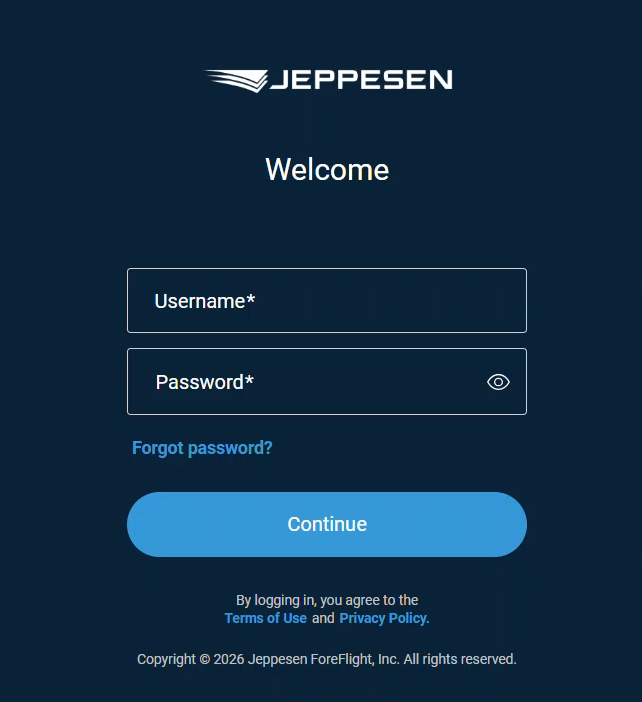
On the JDM Pro Welcome
page, enter your username and password, then select
Continue.
-
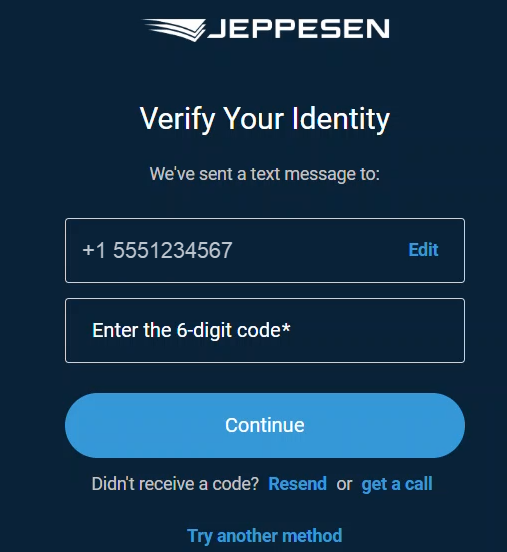
Enter the one-time passcode from your currently enrolled MFA method, then
select Continue.
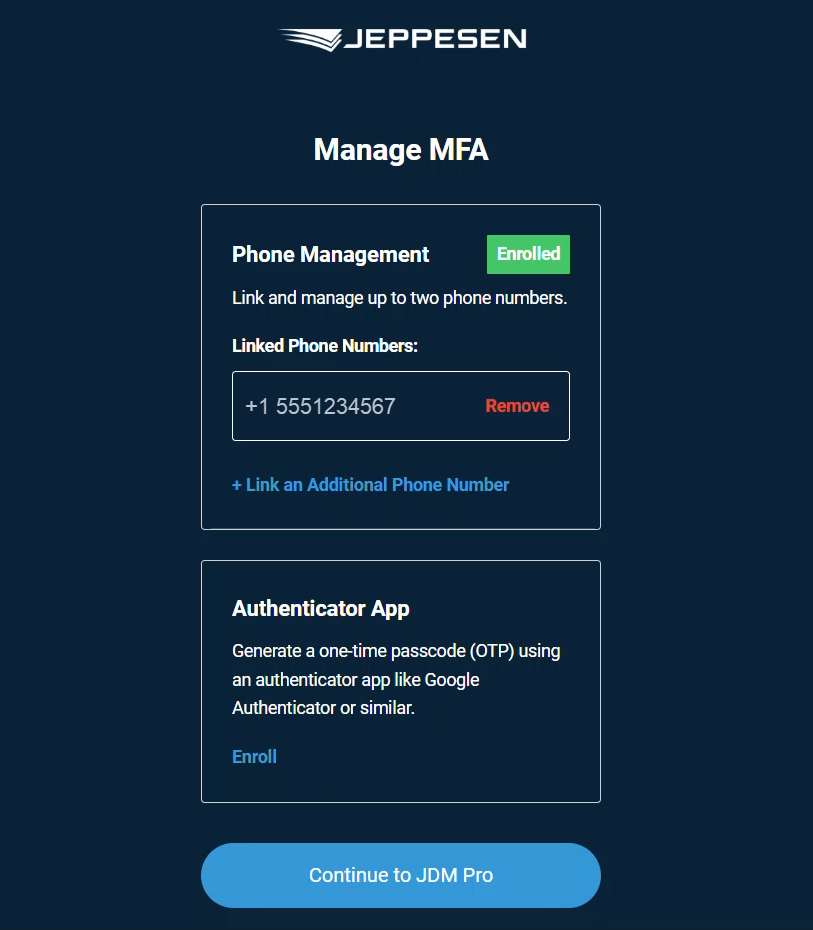
 The Manage MFA screen appears.
 -
On the Manage MFA screen, select the MFA option you want
to enroll:
- To enroll in text or call authentication, select . You can enroll up to two phone numbers for text or call authentication.
- To enroll an authenticator app, select . You can enroll a maximum of one authenticator app for MFA.
The following steps cover the process to enroll an authenticator app for MFA when you already have a phone number enrolled. -
Select .
The Secure Your Account dialog opens in a separate window and displays a QR code.
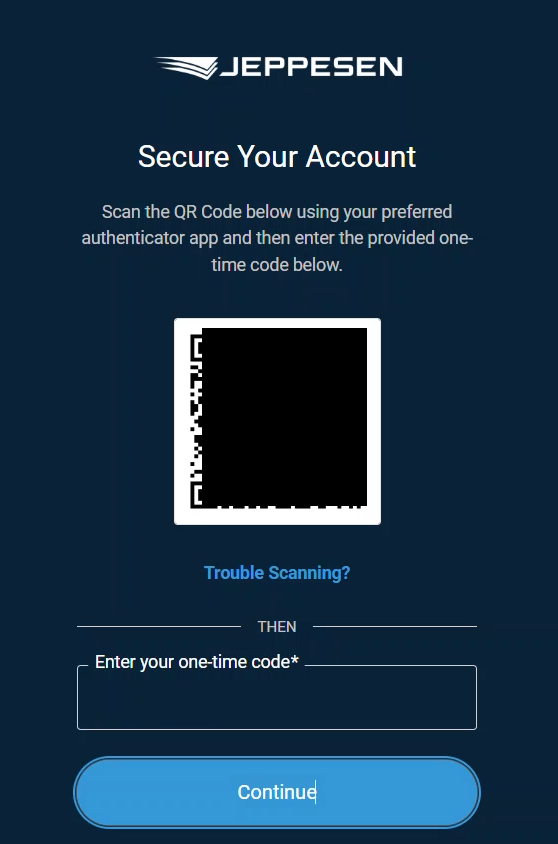
- On your mobile device, open your chosen authenticator app. Then, look for the Add Account or Scan QR Code feature in the authenticator app and scan the QR code that is displayed on the enrollment screen for JDM Pro. When your JDM Pro account is added successfully, the account appears in your authenticator app.
-
Enter the one-time passcode from your authenticator app into the enrollment
screen in JDM Pro, then select
Continue.
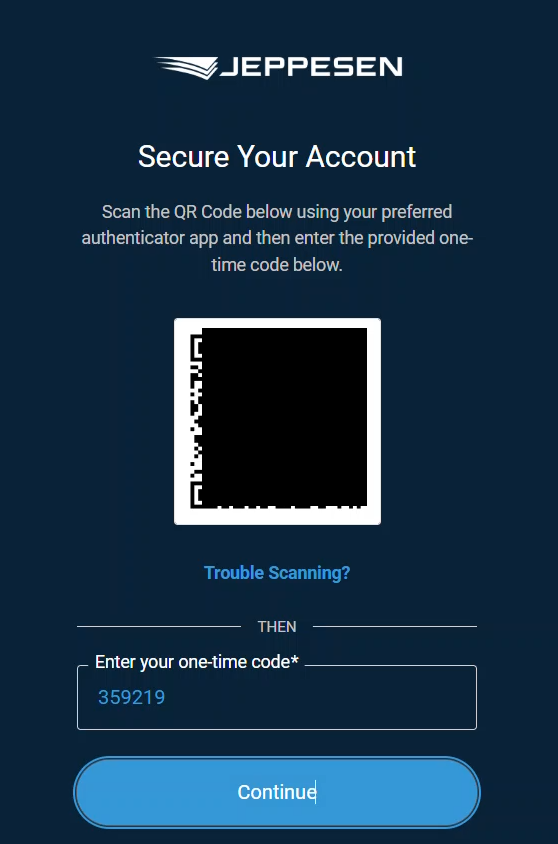 When you're authenticated, you receive a You're All Set! message in the dialog.
 - To return to the sign-in screen, close the dialog.
-
Select Continue to JDM Pro.