
Adding more phone numbers (authentication methods)
Add more phone numbers for authentication.
Procedure
- On the Jeppesen Distribution Manager Pro (JDM Pro) Log In page, enter your username and password, and select Log In.
-
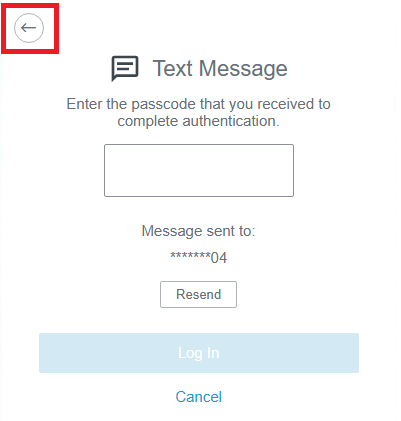
On the Voice or Text Message screen, select
 .
.
-
Select +Add Method.
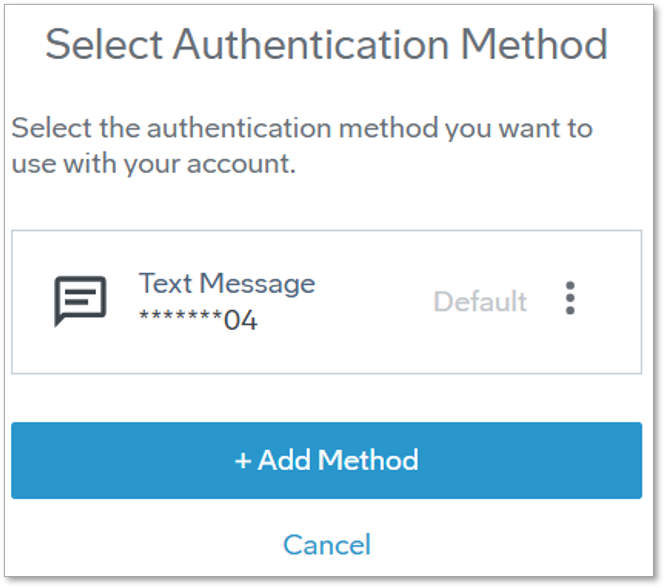 The Authentication Required screen appears.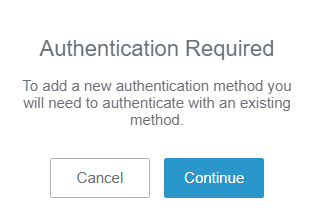
-
Select Continue.
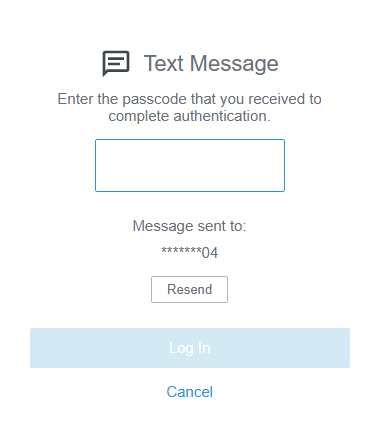
Depending on your default authentication method, the Voice or Text Message screen appears.
-
Enter the passcode and select Log
In.
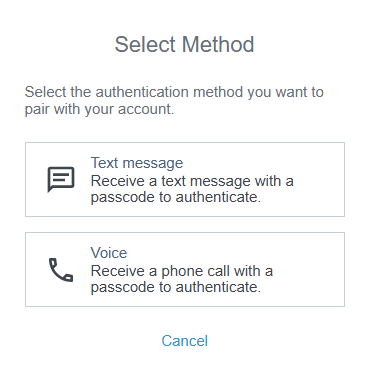
The authentication is successful and the Select Method screen appears.
-
Select the authentication method that you want to add to your
JDM Pro account.
Text message
-
Enter the country code and mobile phone number (for text) or phone number (for
voice), and then select Next.
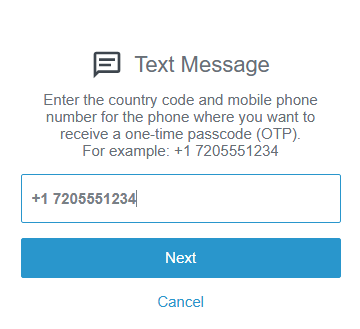 JDM Pro sends the OTP to your phone.
 - Enter the OTP and select Finish.