
Signing in to JDM Pro
To sign in to Jeppesen Distribution Manager Pro (JDM Pro), you must have a valid user name and password.
About this task
When your JDM Pro account is created, your administrator provides your user name and password.
Procedure
-
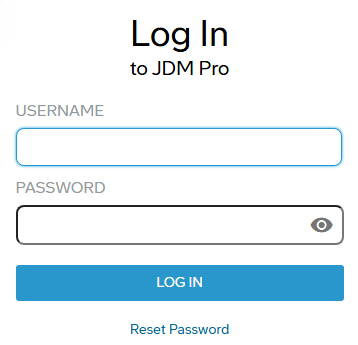
Go to the JDM Pro
Log In page, and enter your user name and
password.
-
Select Log In.
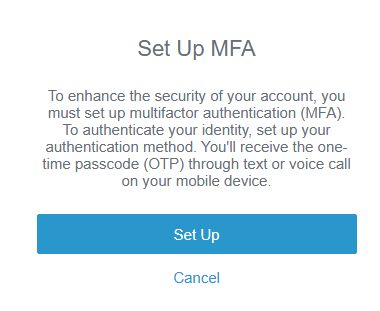
If you're signing in for the first time, the Set Up MFA screen appears. Otherwise, enter your passcode and select Finish.
-
Select Set Up.
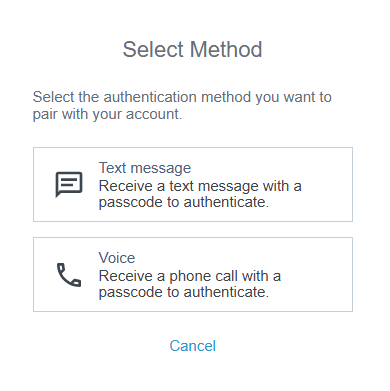
The Select Method screen appears.
-
Select the Voice or
Text message as the authentication
method.
Option Description Voice call To set up voice call as the multifactor authentication method: - On the Select
Method screen, select Voice.
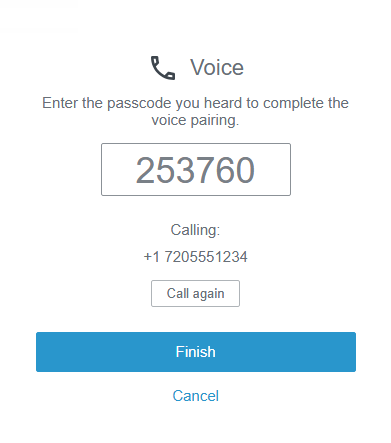
The Voice screen appears.
- Enter the country code and phone number of the phone
where you want to receive a one-time passcode.+1 7205551234
The following formats are supported:
- +1 (720)555–1234
- +1 7205551234
- +17205551234
- +1 7205551234
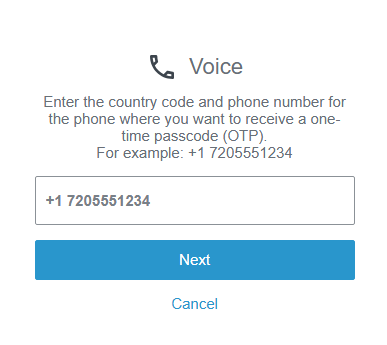
- Select Next.
JDM Pro sends the
passcode through a voice call to your phone.Note: You receive the passcode shortly. However, depending on internet speed and server loads, it might take up to 5 minutes.
- If you don't receive a voice call on your phone, select Call again.
- On the next screen, enter the passcode and select
Finish.
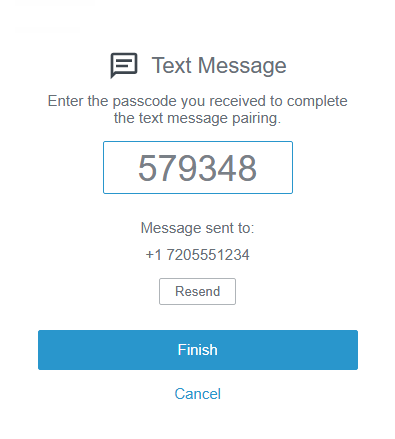
Text message To set up text as the multifactor authentication method: - On the Select Method screen, select Text. The Text Message screen appears.
- On the Text Message
screen, enter the country code and mobile phone number of the phone where
you want to receive a one-time passcode.+1 7205551234
The following formats are supported:
- +1 (720)555–1234
- +1 7205551234
- +17205551234
- +1 7205551234
- Select Next.
JDM Pro sends the
passcode through a text message to your mobile phone.Note: You receive the passcode shortly. However, depending on internet speed and server loads, it might take up to 5 minutes.
- If you don't receive the text message on your phone, select Resend.
- On the next screen, enter the passcode and select
Finish.
- On the Select
Method screen, select Voice.