Exporting hardware information for devices
You can export the hardware (system) information for one or more devices to a comma-separated value (CSV) file. Jeppesen Distribution Manager Pro (JDM Pro) exports information for each selected device, including devices that you have to scroll to view.
About this task
JDM Pro exports the list based on your current filter settings. If you have any devices selected, JDM Pro exports the device information for only those devices.
Note: You can export device information for any devices that have registered.
You can use any program that can open a CSV file to view the data, such as Microsoft Excel, Google Spreadsheets, and OpenOffice CALC.
The CSV file that JDM Pro exports contains the following columns, from left to right, for each selected device:
- Device
- Last Name
- First Name
- Application
- Version
- Hardware Type
- Model
- OS Version
- Capacity
- Disk Space
- Created (UTC)
- Updated (UTC)
- Contacted (UTC)
Note: If a
device lacks information for a particular column, that column remains blank in the CSV
file.
Procedure
- From the JDM Pro menu, select Devices.
-
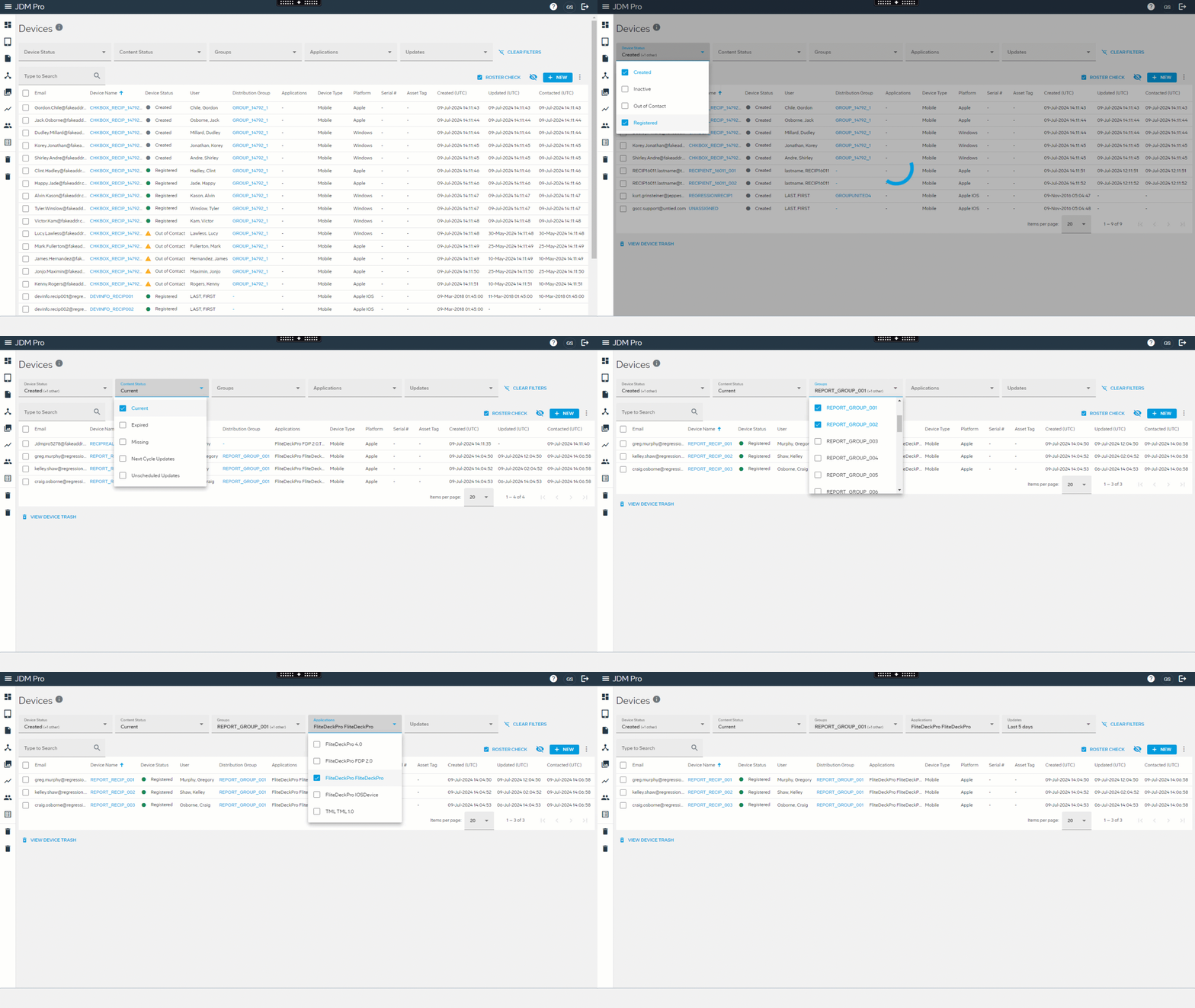
Apply filters to show only those devices that you want to include
in the CSV file.
-
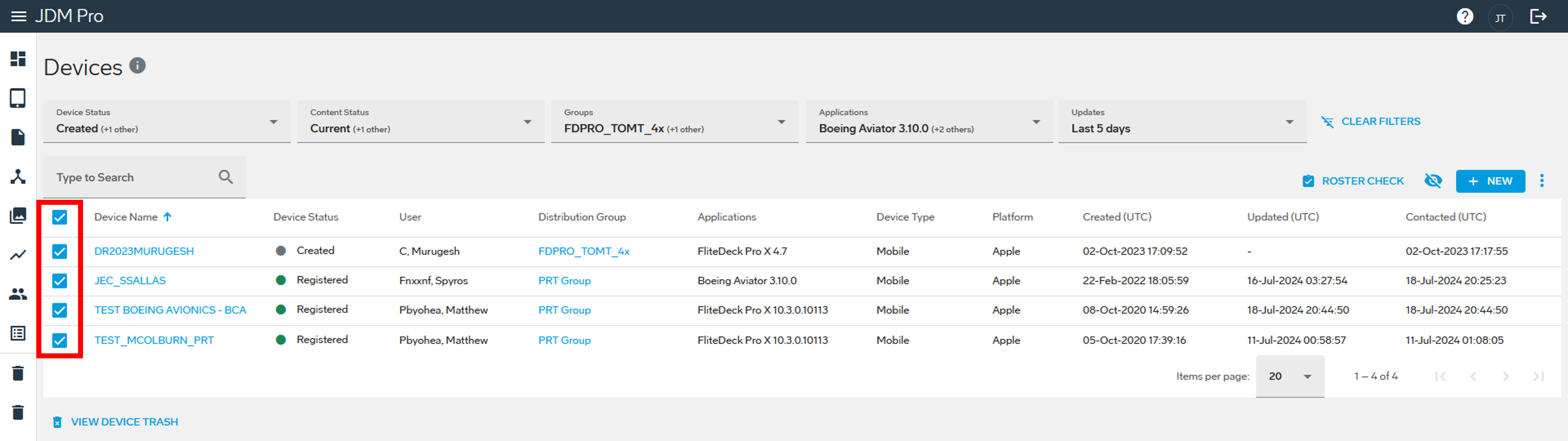
Select the devices.
- To select all the devices, select the checkbox at the top of the list.
- To select individual devices, select the checkbox next to each device.
-
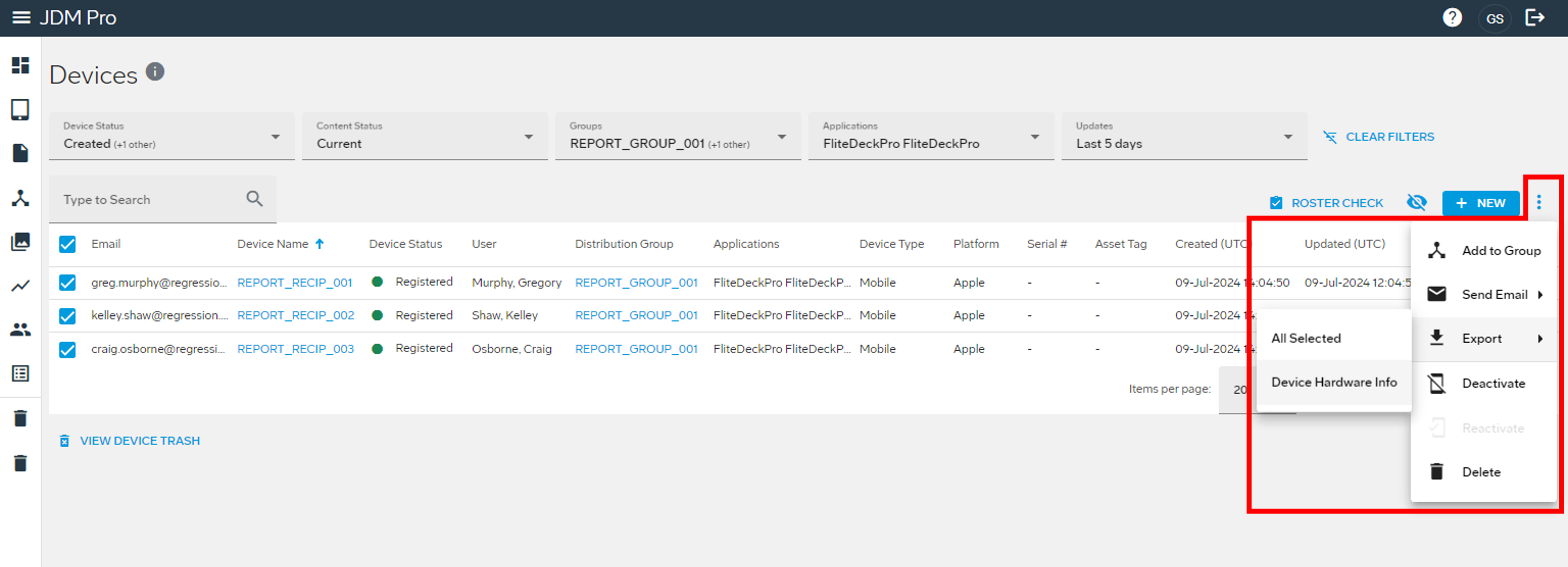
Select
 and then go to .
FigureExport option on Devices page