
Generating reports
Use the Reports page to generate and download reports for the devices in your fleet that have missing or expired content. You can also view devices that have content versions that differ from the content assigned to that device.
About this task
Note: When you
generate a report, Jeppesen Distribution Manager Pro (JDM Pro) doesn't
include devices that are in the Device Trash page with a state of
Delete Pending.
Procedure
-
From the JDM Pro
menu, access the, Reports page.
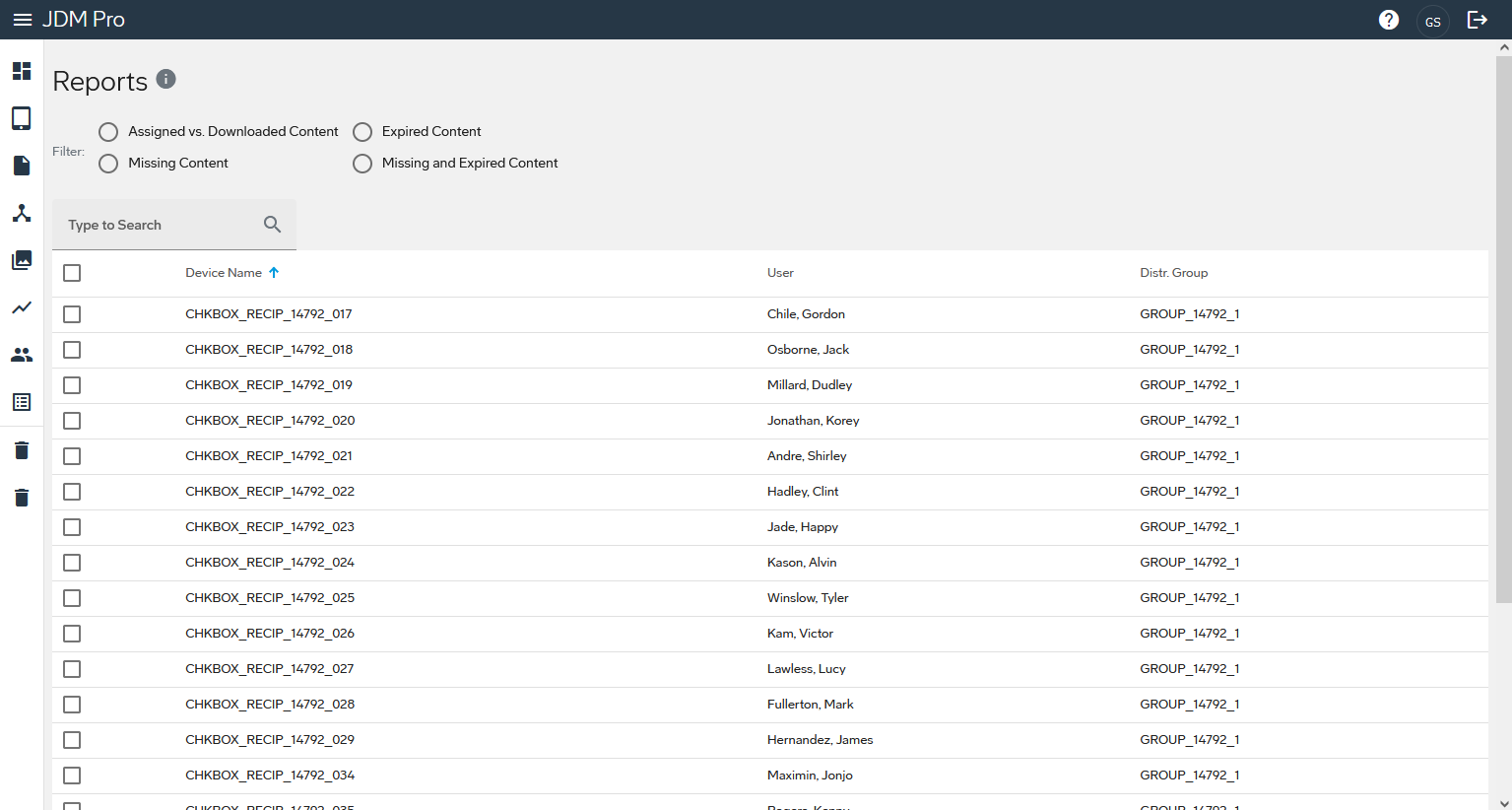
JDM Pro displays a list of every device in your system, sorted by device name.
-
Select the type of report you want to use.
- Assigned vs. Downloaded Content
- Missing Content
- Expired Content
- Missing and Expired Content
JDM Pro filters the list to show only devices that meet your criteria.FigureAssigned vs. Downloaded Content report 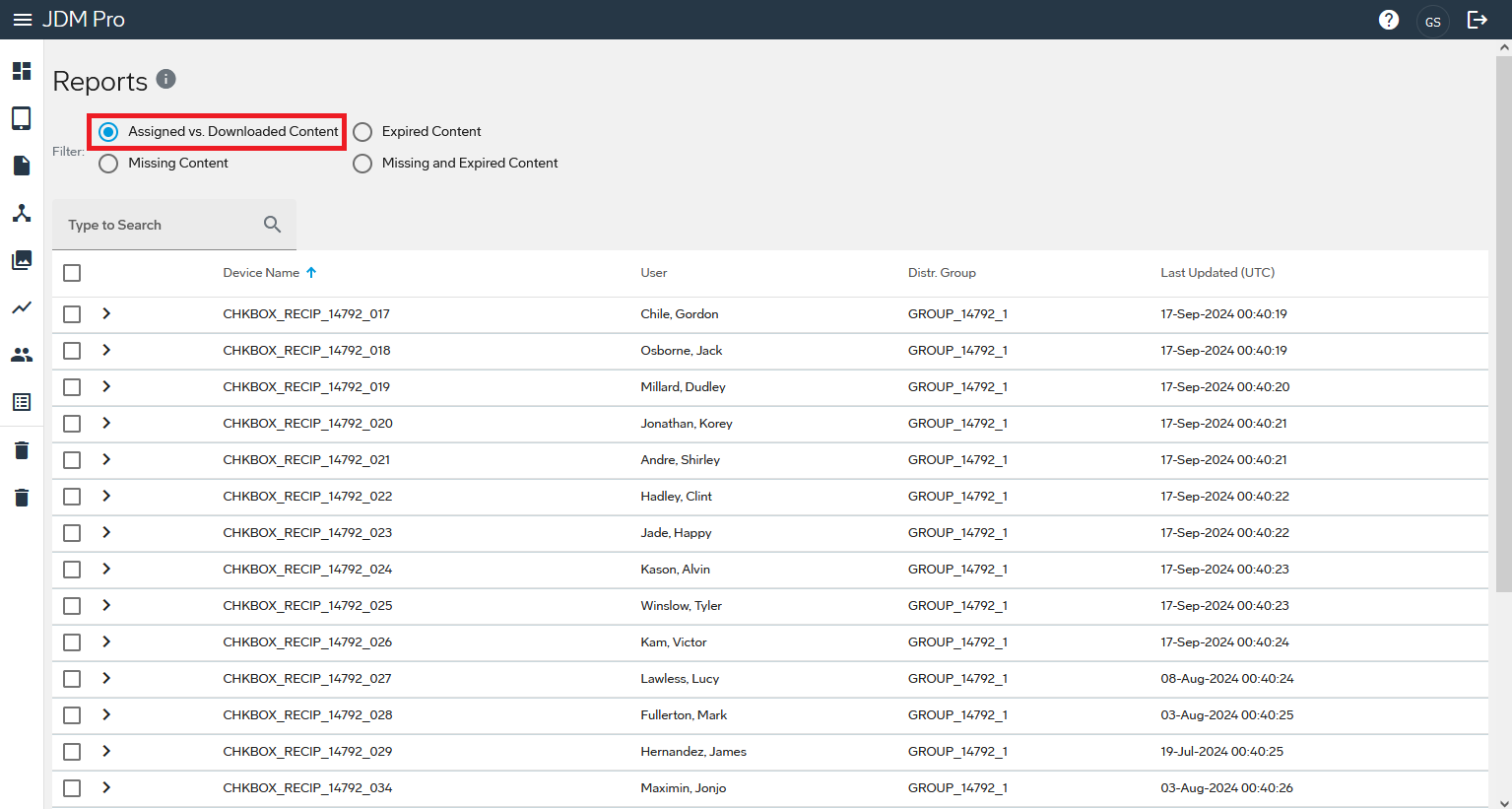
- Select the checkbox for the device report information that you want to download.
-
Select the Download button.
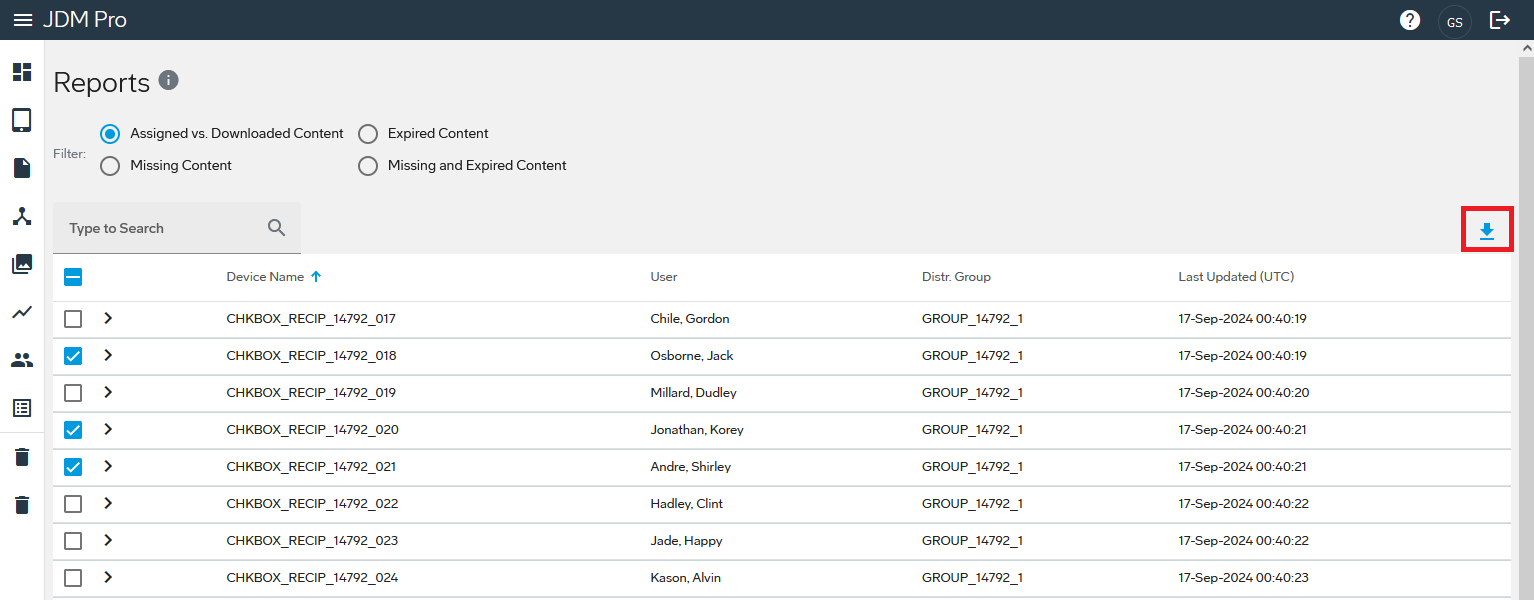 JDM Pro downloads a spreadsheet with information about the selected devices to your computer. Depending on your browser, you might need to name the file and specify where to save it.